OQP Studio
OQP Studio is the desktop graphical interface for OpenQP. It prepares canonical
.oqp inputs, runs a local or bundled OpenQP engine, keeps each calculation in
a project directory, and presents molecular structures and calculated results.
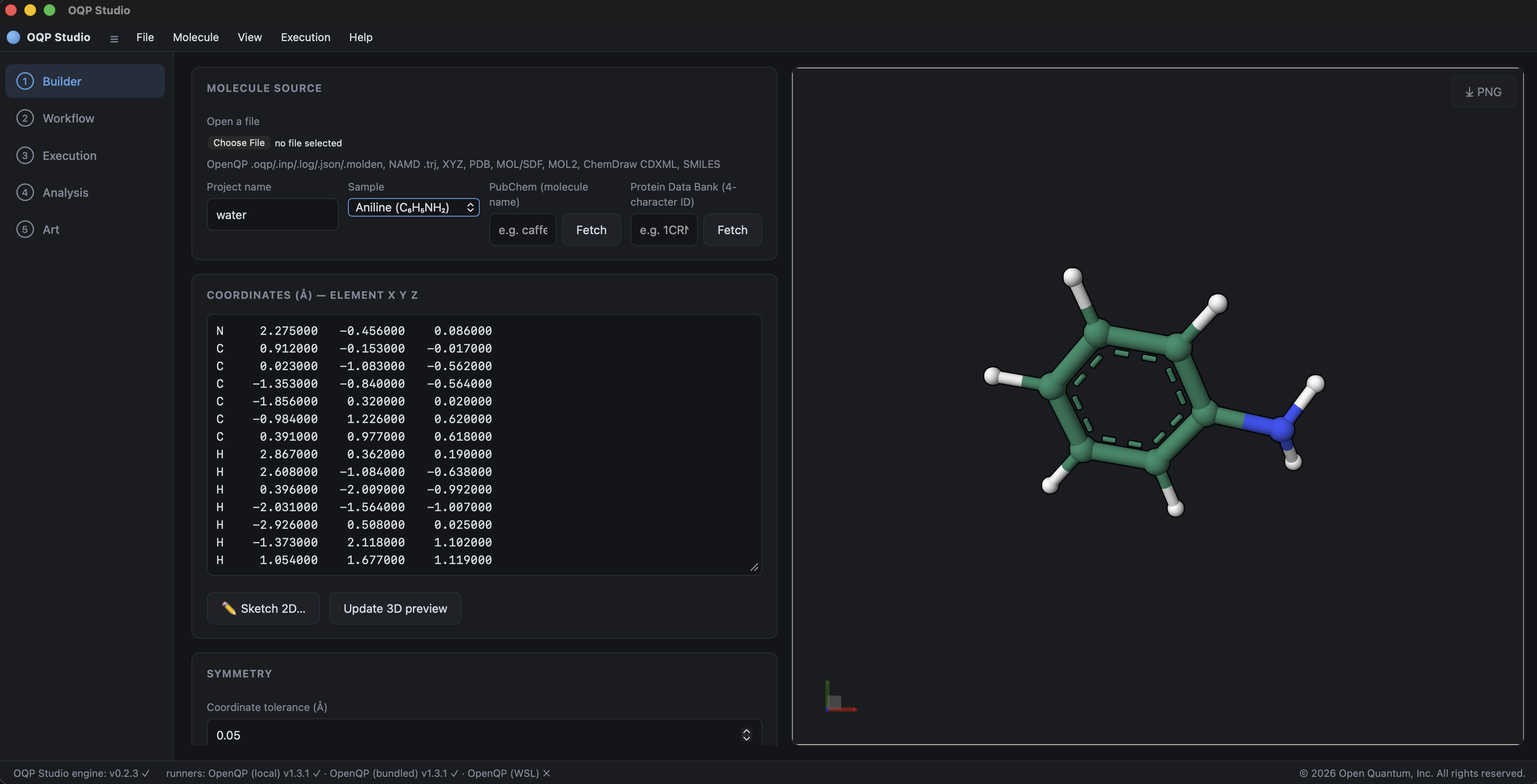
Build or import a molecular structure and inspect its three-dimensional preview.
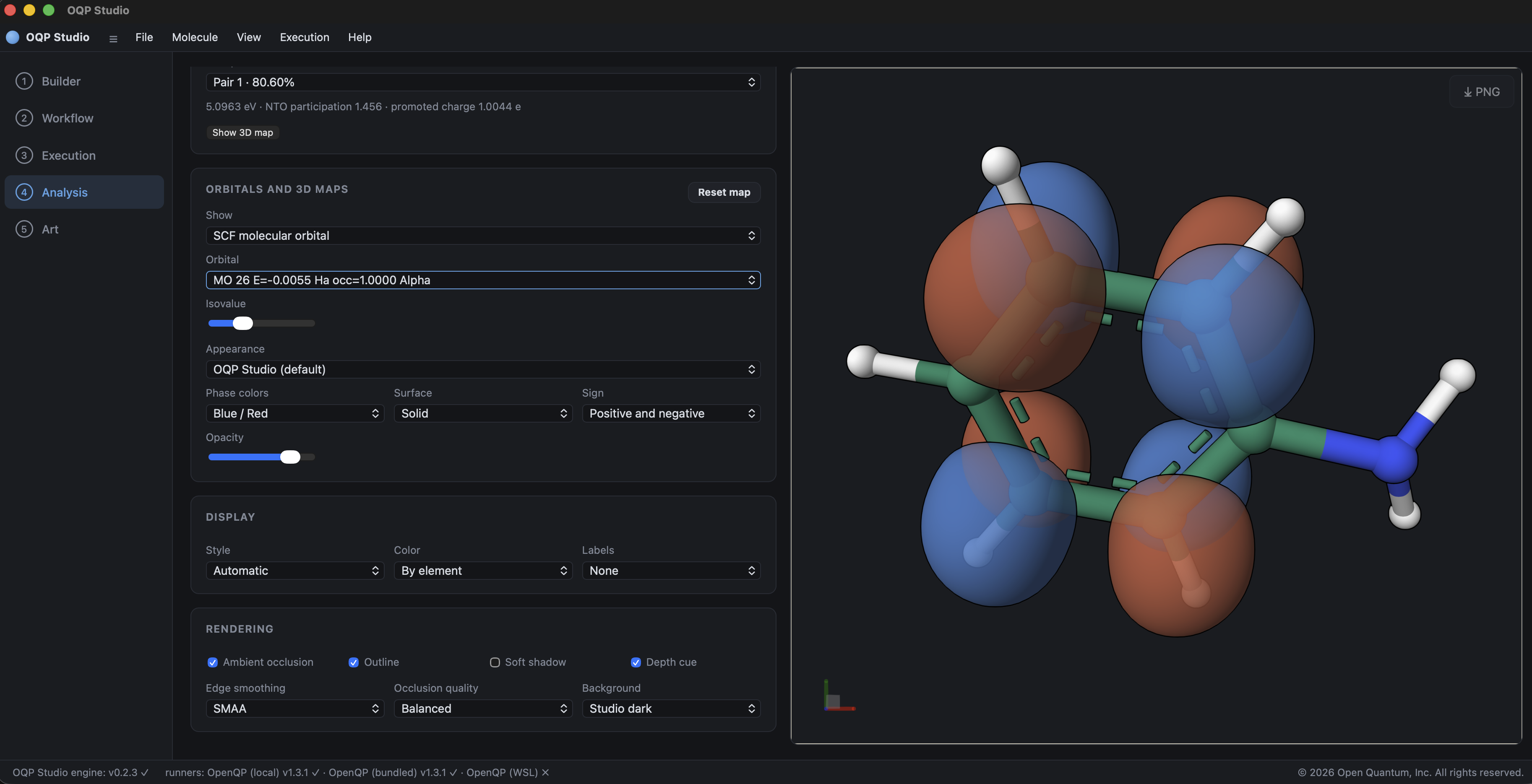
Inspect calculated molecular orbitals and adjust their three-dimensional visualization.
This manual follows the current OQP Studio main branch. A released installer
may expose a smaller set of controls; consult its release notes when a menu
described here is absent.
The main window follows a five-step sequence:
- Builder - obtain or edit a molecular structure.
- Workflow - choose the calculation and its scientific options.
- Execution - inspect the generated input, select an engine, and run it.
- Analysis - inspect jobs, energies, structures, orbitals, spectra, and other calculated properties.
- Art - render the selected molecular or volumetric result with progressive ray tracing.
The screenshots in the following chapters use built-in molecular structures and representative calculation results. They show the complete five-step layout in OQP Studio 0.2.3; controls can move or expand as the interface evolves.
Desktop architecture
The installed application is a standalone Tauri desktop program. Its interface is bundled into the application and is loaded directly; it is not fetched from a website. A bundled Python service performs file handling, job control, and analysis. The desktop shell exchanges API messages with that service over standard input and output, so the installed application does not open a localhost HTTP port.
During development only, the frontend and backend can be run on localhost. That development arrangement is not the installed application's runtime design.
Files and compatibility
Studio generates the same concise .oqp format accepted by OpenQP. It is not a
Studio-specific input language. Generated inputs omit unchanged defaults, while
Edit input in Workflow or the editor in Execution can be used for explicit
advanced settings.
Studio can open structures and results from .oqp, legacy .inp, .log,
.out, .json, .molden, .xyz, .trj, .cube, PDB, MOL/SDF, MOL2, CDXML,
and SMILES sources where the selected operation supports the format. Studio
generates concise .oqp input; it does not generate legacy sectioned input.
Recommended first calculation
- Open Builder, select a sample, and give the project a meaningful name.
- Open Workflow, choose Single-point energy, DFT, a functional, and a basis set.
- Select Generate input.
- In Execution, choose OpenQP (bundled) when using a
with-engineinstaller, select the thread count, and run the job. - Open the completed project in Analysis and inspect Results summary and Project files.
Continue with installation, compare standalone and integrated packages, or go directly to Builder and Workflows. The workflow scientific reference explains what each calculation measures and how to validate it. For biomolecular models, continue with QM/MM preparation and calculation. Suggestions and reproducible problem reports can be submitted through Feedback.